Key Takeaways
- Photos → Edit → drag the yellow handles → save as new clip.
- The useful part of a workout video is usually 7–30 seconds.
- Trimming plus compression can shrink a clip roughly 10× — hundreds of clips fit in about 1.5 GB.
- Save My Workout trims and compresses automatically at save time.
How do I trim a video on my iPhone? Open the video in the Photos app, tap Edit, drag the yellow handles at either end of the timeline to the section you want, tap Done, and choose “Save Video as New Clip.” For workout videos, keep just the 7–30 seconds showing the actual movement.

Method 1: the Photos editor
Open the clip → Edit → drag the yellow handles to bracket the set → Done → “Save Video as New Clip.” It works — but it is manual, the file stays large, and the trimmed clip is still buried in your camera roll, untagged.
Why trim at all
Because at the rack you need the movement, not the monologue. A tight 7–30 second loop shows form and tempo instantly, and it is far lighter on storage once compressed — a library of hundreds of clips fits in about 1.5 GB.
Method 2: trim at save time, automatically
With Save My Workout, trimming is part of saving: share the clip, bracket the set once, and it is compressed and filed by muscle group, equipment, and creator in the same step. No second pass, no editing app. (Where those clips go next: build a workout from saved clips.)
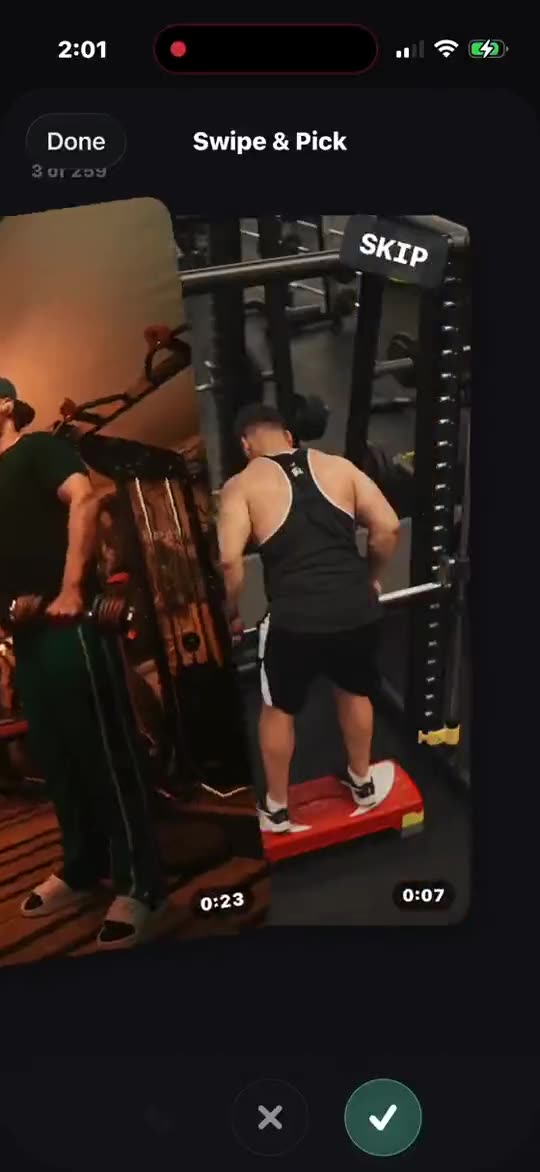
Trim it once. Find it forever.
Share → trim → auto-tagged. Your best sets, ready in seconds.
Get Save My Workout